Every session documented in a minute, adding straight to the treatment
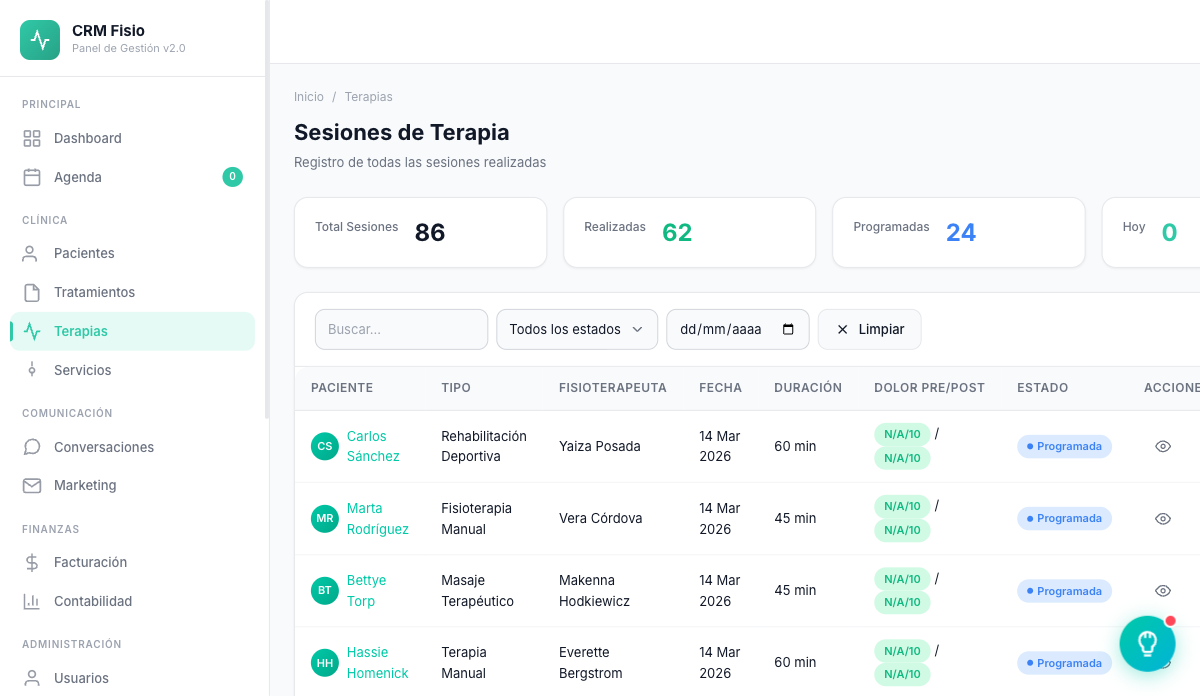
Techniques, area treated, pain before and after, and the plan for the next visit. Dictate it or type it, and the treatment's progress updates on its own.
- Pain before and after every session, from 0 to 10
- Fill in the session log by dictating out loud
- A downloadable PDF report for every session
What gets complicated when documenting sessions today
Notes get written at the end of the day
There's no time between patients. Notes get put off until later, and what happened on the table gets lost along the way.
Everyone notes things their own way
One writes down the area, another the techniques, another nothing at all. When a colleague picks up the patient again, they don't know what was done or how they responded.
The treatment doesn't know about it
Sessions go one way and the plan another. Knowing how many are left or whether pain is decreasing means going through the notes one by one.
What you record in every session
An organized clinical record, the same for the whole team and connected to the treatment plan.
Complete clinical record
Type of therapy, body area and laterality, techniques applied, observations, progress notes and home exercises for every session.
Pain before and after
Note the pain level from 0 to 10 on arrival and on leaving. Fisionexa calculates the reduction and shows it with colors so you can see it at a glance.
Fill it in by voice
Dictate what you did and the voice assistant transcribes it and fills in the fields: pain, area, techniques, duration and notes. You review and save.
Validation of what the AI records
If the AI assistant logs a session, it stays pending validation. It only counts toward the history once you review and validate it.
Session report as PDF
Download any session's report with patient, area, techniques, and pain before and after, ready for the patient or for a referral.
Straight from the appointment on the schedule
From the appointment you go directly to the treatment's scheduled session to log it, with no need to look up the patient again.
How it works day to day
-
You open the session from the appointment
Click "log session" on the schedule and you land on that treatment's scheduled session, with the patient already set.
-
You fill it in within a minute
Pain, area, techniques and the plan for the next visit. Typing or dictating between patients.
-
The treatment updates itself
Marking it as completed adds to the plan's progress and the exit pain level becomes the treatment's current pain level.
The AI logs it, you sign off
The AI assistant can log a session. That entry isn't final: it stays pending validation, you can correct it, and once validated it records who validated it and when. Only then does it count toward the treatment's progress and pain level.
- AI sessions flagged as pending validation
- You correct the data before validating
- It records who validated the session and when
- They don't count toward progress until you validate them
What people usually ask
Do I have to create every session by hand?
No. When you create the treatment with a number of sessions, start date and frequency, Fisionexa generates the scheduled sessions. You just fill them in and mark them as completed.
What happens if the patient cancels?
You mark the session as cancelled from the session list. Cancelled sessions don't count toward the treatment's progress, and the patient's history keeps showing what happened.
Does the patient see the internal observations?
No. Internal observations are for the team and don't appear in the session report. Also, each session's clinical notes are stored encrypted in the database.
Does every physiotherapist see everyone's sessions?
It depends on the permissions you give them. You can set each physiotherapist to see only their own sessions, or let some users see the whole clinic's.
Keep exploring the system
Every module shares data with the rest: what happens in one reaches the others without copying anything.
See it working with your clinic
Request a free 20-minute demo or jump straight into the interactive demo: the website and dashboard of a sample clinic.